Quickly Switch Claude Code Providers with cc switch and cc desktop switch
In the world of AI programming tools, Claude Code is undoubtedly one of the most powerful choices today. However, with major cloud service providers launching their own LLM APIs, how to conveniently switch between different providers has become a practical need. Today, I’ll introduce two tools: cc switch and cc desktop switch, which help you quickly switch Claude Code model providers.
Project Links:
- cc switch: farion1231/cc-switch (54.9k ⭐)
- cc desktop switch: lonr-6/cc-desktop-switch
What is cc switch
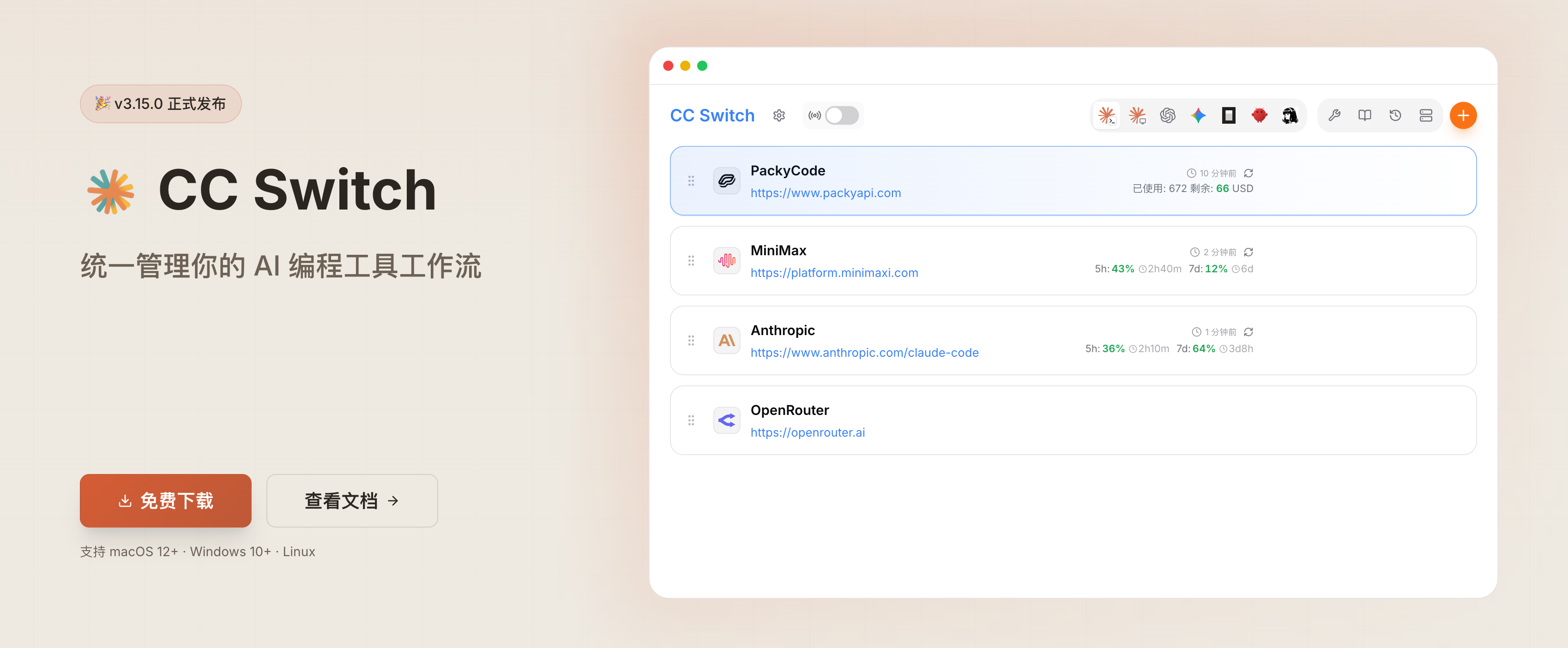
cc switch is a cross-platform desktop application specifically designed for managing provider configurations for five major AI programming CLI tools: Claude Code, Codex, Gemini CLI, OpenCode, and OpenClaw.
Core Features
- Unified Management: One app manages provider configurations for five CLI tools simultaneously
- 50+ Provider Presets: Built-in presets for AWS Bedrock, NVIDIA NIM, and numerous community relay services - copy your API key and import with one click
- One-click Switching: Switch providers from main interface or system tray
- Unified MCP & Skills Management: One panel to manage MCP servers and Skills across four apps with bidirectional sync
- Proxy & Failover: Local proxy supports format conversion, auto-failover, circuit breaker, provider health monitoring
- Usage & Cost Tracking: Dashboard shows spending, requests, and token trend charts
- Session Manager: Browse, search, and restore conversation history across all apps
- Cloud Sync: Sync configurations via Dropbox, OneDrive, iCloud, NAS, or WebDAV servers
- Cross-Platform: Native desktop app for Windows, macOS, and Linux, built with Tauri 2
Supported Apps
- Claude Code: Anthropic’s AI programming assistant
- Codex: OpenAI’s programming CLI tool
- Gemini CLI: Google’s AI CLI tool
- OpenCode: Open-source AI programming tool
- OpenClaw: Emerging AI programming tool
Installing cc switch
macOS Users
# Install via Homebrew (Recommended)
brew tap farion1231/ccswitch
brew install --cask cc-switch

# Update
brew upgrade --cask cc-switch
Or download CC-Switch-v{version}-macOS.dmg from the Releases page.
Windows Users
Download from Releases:
CC-Switch-v{version}-Windows.msiinstallerCC-Switch-v{version}-Windows-Portable.zipportable version
Linux Users
# Arch Linux
paru -S cc-switch-bin

# Or download deb/rpm/AppImage from Releases
What is cc desktop switch
cc desktop switch is a lightweight configuration tool specifically for the Claude Desktop official desktop client. Unlike cc switch which targets CLI users, cc desktop switch focuses on the desktop version of Claude Desktop.
Core Features
- Multiple API Providers: DeepSeek, Kimi, Zhipu GLM, Alibaba Cloud Bailian, SiliconFlow, and more
- One-click Config Write: Write selected provider config directly to Claude Desktop’s local configuration
- Direct Connection Mode: Anthropic-compatible interfaces use direct connection by default; Claude Desktop can continue working after closing the app
- Experimental Compatibility Mode: Retains local forwarding support for OpenAI/new-api/reverse-proxy interfaces
- Basic Connectivity Testing: Tests basic connectivity to provider API addresses
- Bilingual Interface: Supports Chinese/English interface and light/dark mode
Basic Usage
cc switch Usage
- Add Provider: Click “Add Provider” → Choose a preset or create custom configuration
- Switch Provider:
- Main UI: Select provider → Click “Enable”
- System Tray: Click provider name directly (instant effect)
- Takes Effect: Restart your terminal or the corresponding CLI tool (Claude Code does not require restart)
- Back to Official: Add “Official Login” preset, restart CLI tool, then follow its login/OAuth flow
cc desktop switch Usage
- Launch CC Desktop Switch
- Operate in the popup desktop window
- Select a quick preset, fill in your API key, adjust model mapping if needed
- Click “Apply to Claude Desktop”
- Fully restart Claude Desktop to test
Note: Simply closing the chat window is usually not enough. Please exit Claude from the system tray, or confirm no Claude processes remain in the task manager.
Practical Usage Experience
I’ve been using cc switch for a while, and the overall experience is quite good. Here are my thoughts:
Advantages
- Convenient switching: More intuitive than manually editing config files
- Multi-app support: Supports Claude Code, Codex, Gemini CLI, and more simultaneously
- Cost monitoring: Clearly shows usage of each provider
- Tray operation: Minimizes to tray without consuming too many resources
- Rich presets: Built-in 50+ provider presets, no manual configuration needed
Conclusion
cc switch and cc desktop switch provide convenient provider management solutions for Claude Code users. Their focus is slightly different:
- cc switch: For CLI users, unified management of Claude Code, Codex, Gemini CLI, OpenCode, OpenClaw
- cc desktop switch: For Claude Desktop desktop client users, more lightweight, focused on desktop client
Whether you need to test different model effects or find the most cost-effective provider, these tools can meet your needs. If you’re using Claude Code, give these tools a try - I’m sure they’ll give you a great experience.
If you’re interested in AI programming tools, you can also check out my previous articles: Neovim Beginner’s Guide Series, which contains a lot of content about editor configuration and AI integration.
Related Content
If you feel that this article has been helpful to you, your appreciation would be greatly welcomed.
Sponsor